This is part of our Google Analytics Alternatives Buyer’s Guide.
You’ve decided to try Plausible Analytics — good choice. Now let’s get it running on your website. The whole process takes about 10 minutes, and you don’t need any technical expertise.
I’ve set up Plausible on over 30 client sites in the past three years. Here’s the exact process I follow every time.
What You’ll Need
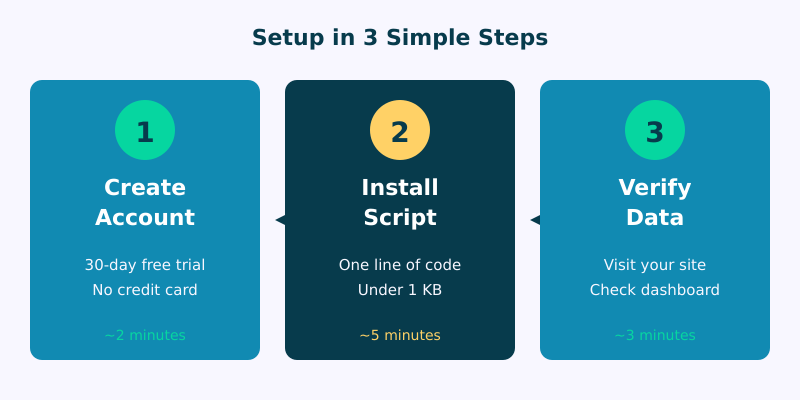
- Access to your website’s HTML (or a CMS like WordPress, Webflow, etc.)
- An email address for your Plausible account
- 10 minutes of uninterrupted time
That’s it. No developer required, no complex configuration.
Step 1: Create Your Plausible Account
Head to plausible.io/register and create an account. Plausible offers a 30-day free trial — no credit card required.
Enter your email and choose a password. You’ll receive a confirmation email. Click the link to verify.
Privacy note: Plausible stores your account data in the EU and doesn’t share it with third parties. Their privacy policy is refreshingly short.
Step 2: Add Your Website
After logging in, Plausible will prompt you to add your first website. Enter your domain name — just the domain, without https:// or trailing slashes.
- Correct:
example.com - Correct:
blog.example.com(for subdomains) - Wrong:
https://example.com
Choose your timezone. This determines how Plausible groups data by day — pick the timezone where most of your visitors are, or your business timezone.
Step 3: Install the Tracking Script
Plausible gives you a small snippet of code:
<script defer data-domain="yourdomain.com" src="https://plausible.io/js/script.js"></script>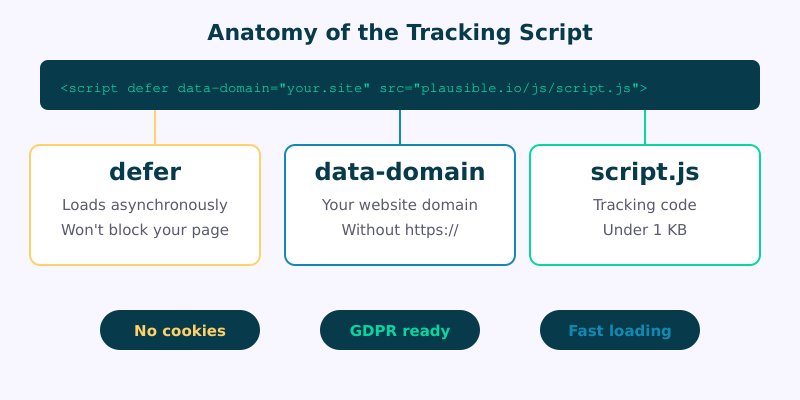
This script is:
- Under 1 KB — the smallest analytics script available
- Loaded with
defer— won’t block your page from rendering - Cookie-free — no consent banner needed
Add this script to the <head> section of every page you want to track.
WordPress
The easiest method: install the official Plausible Analytics plugin.
- Go to Plugins → Add New
- Search for “Plausible Analytics”
- Install and activate
- Go to Settings → Plausible Analytics
- Enter your domain name
- Save changes
Done. The plugin handles everything automatically.
Alternative: add the script manually via your theme’s header.php or use Insert Headers and Footers.
Static HTML
Paste the script inside the <head> tag:
<!DOCTYPE html>
<html>
<head>
    <title>Your Page</title>
    <script defer data-domain="yourdomain.com"
            src="https://plausible.io/js/script.js"></script>
</head>
<body>...</body>
</html>
Other Platforms
Plausible has integration guides for Webflow, Squarespace, Wix, Shopify, Ghost, and Docusaurus. Check the full documentation for your specific platform.
Step 4: Verify Installation
After installing the script, visit your website in a new browser tab. Check your Plausible dashboard — you should see yourself as a visitor within a few seconds.
Not seeing data? Common fixes:
- Ad blocker enabled — some ad blockers block Plausible. Try a different browser.
- Caching — clear your site cache after adding the script.
- Wrong domain — the
data-domainmust match exactly what you entered in Plausible. - Script not in <head> — make sure it’s inside
<head>, not<body>.
You can also check your browser’s Developer Tools (F12) → Network tab. Look for a request to plausible.io/js/script.js.
Step 5: Set Up Goals
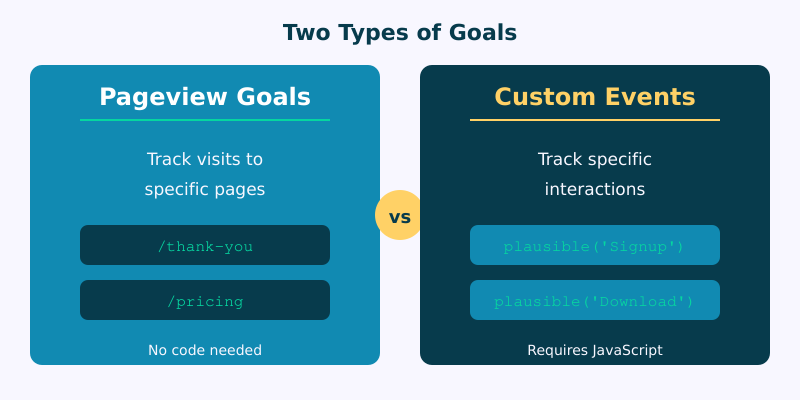
Goals let you track specific actions: button clicks, form submissions, signups, purchases. This is where analytics becomes useful for decision-making.
Pageview Goals
Track visits to specific pages — like a “Thank You” page after form submission.
- In Plausible, go to site settings → Goals
- Click “Add Goal” → select “Pageview”
- Enter the page path:
/thank-you - Save
Custom Event Goals
Track interactions like button clicks. First, create the goal in Plausible (site settings → Goals → Custom Event → name it Signup). Then trigger it from your site:
document.getElementById('signup-button')
  .addEventListener('click', function() {
    plausible('Signup');
  });
See Plausible’s custom events documentation for more examples.
Step 6: Enable Extensions
Plausible offers optional script extensions. Just change the script URL:
Track outbound links:
src="https://plausible.io/js/script.outbound-links.js"Track file downloads:
src="https://plausible.io/js/script.file-downloads.js"Both at once:
src="https://plausible.io/js/script.outbound-links.file-downloads.js"See all available extensions in the script extensions documentation.
What Your Dashboard Shows
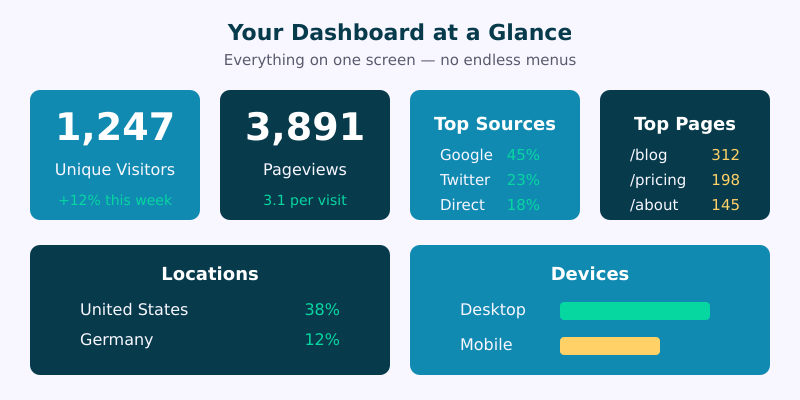
Once data flows in, your Plausible dashboard shows everything on one screen:
- Unique visitors and total pageviews
- Bounce rate and visit duration
- Top pages — most visited content
- Top sources — where visitors come from (Google, Twitter, direct). Plausible automatically parses UTM-tagged URLs, so campaign traffic appears here with full source and medium breakdowns.
- Locations — countries and cities
- Devices — desktop, mobile, tablet
All on one screen. No endless menus, no learning curve.
Next Steps
- Wait 24-48 hours for meaningful data
- Set up goals for your most important conversions
- Enable email reports — weekly stats in your inbox (Settings → Email Reports)
- Invite team members if needed (Settings → People)
- Connect to Slack or other tools via the Plausible API
That’s it. Privacy-friendly analytics running on your site — no cookies, no consent banners, no complexity.
Not sure if Plausible is the right tool? Read our comparison of Plausible, Fathom, and Matomo to see how they stack up.
FAQ
Do I need a cookie consent banner with Plausible?
No. Plausible doesn’t use cookies and doesn’t collect personal data. It’s GDPR, CCPA, and PECR compliant without consent banners. If you’re unsure about your other tracking technologies, our Consent Logic Planner maps consent requirements across 11 regions.
Will Plausible slow down my website?
No. The script is under 1 KB and loads asynchronously with defer. It has zero impact on Core Web Vitals. I’ve measured it on dozens of client sites — no difference in page speed.
Can I share my Plausible dashboard publicly?
Yes. Go to site settings → Visibility → make it public. You’ll get a shareable link. See Plausible’s own public dashboard as an example.
How accurate is Plausible compared to Google Analytics?
Often more accurate. Since Plausible doesn’t require cookies, it isn’t blocked by privacy tools as aggressively. You’ll likely see more visitors in Plausible than in GA4. Read Plausible’s analysis of data accuracy.