You installed GA4, configured a few events, maybe even set up a conversion or two — and assumed you were good to go. But here’s what most site owners don’t realize: the default GA4 setup is not privacy-compliant in most jurisdictions. And the consequences of getting it wrong range from data deletion to five-figure fines.
I’ve audited GA4 implementations for over 60 organizations in the past two years alone. The pattern is remarkably consistent: teams focus on getting the data in, but rarely ask what data they’re collecting, where it goes, or who else gets access. This guide walks you through a complete privacy audit of your GA4 setup — step by step, with the exact settings to check and the decisions you need to document.
This article is part of my comprehensive Migrate from Google Analytics hub. Whether you plan to stay on GA4 or move to a privacy-first alternative, auditing your current setup is the essential first step.
Why Your GA4 Setup Probably Has Privacy Risks
GA4 is a powerful analytics platform, but its power comes with complexity — and complexity creates blind spots. After years of reviewing setups across e-commerce sites, SaaS products, media publishers, and non-profits, I’ve found that roughly 80% of GA4 implementations have at least one significant privacy issue.
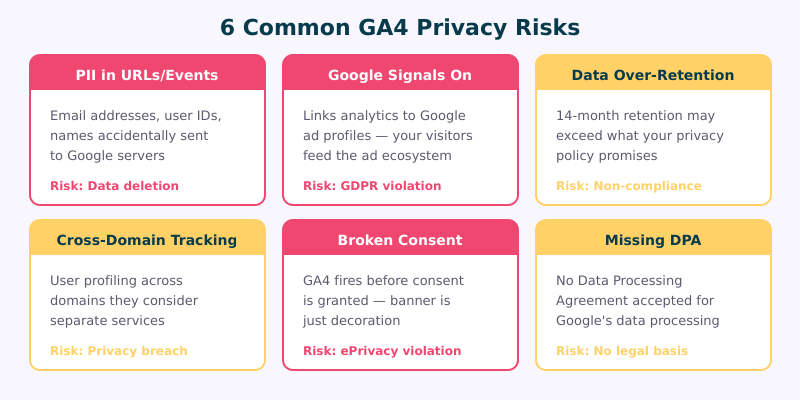
The most common problems fall into six categories:
- PII in event parameters or page URLs — email addresses, user IDs, or names accidentally sent to Google
- Google Signals enabled by default — linking your analytics data with Google’s advertising profiles
- Overly long data retention — keeping user-level data longer than your privacy policy states
- Cross-domain tracking exposing user journeys — creating detailed behavioral profiles across multiple properties
- Missing or broken consent management — collecting data before users give valid consent
- No Data Processing Agreement on file — operating without the legal foundation GDPR requires
Here’s the part that keeps privacy officers up at night: if Google detects personally identifiable information in your GA4 data, they reserve the right to delete ALL data for that time period. Not just the offending rows — everything. Your traffic trends, conversion data, audience insights — gone. And they won’t necessarily warn you first.
Let’s go through each risk area systematically so you can identify and fix issues before they become problems.
Step 1 — Check for PII in URLs and Events
This is the single most common privacy violation I find in GA4 implementations, and it usually happens without anyone realizing it.
Where PII hides:
- URL query parameters — password reset links containing email addresses (
[email protected]), search queries with names, form submissions that append data to URLs - Page titles — dynamically generated titles like “Order Confirmation for John Smith”
- Custom event parameters — developers passing user names, emails, or phone numbers into event tracking
- Enhanced measurement — GA4’s automatic outbound click tracking can capture URLs containing PII
How to audit this:
- Open GA4 > Admin > Data Streams and select your stream
- Go to Configure Tag Settings > Show More > Define Internal Traffic — check what URL patterns exist
- In GA4 DebugView, browse your site while watching real-time events. Look at every parameter for anything that could identify a person
- In Explorations, create a free-form report showing Page path and look for patterns like
@symbols,email=, oruser=in your URLs - Use Google Tag Assistant (the Chrome extension) to inspect exactly what data each tag fires
How to fix it:
Enable GA4 Data Redaction — a feature many teams don’t know exists. Go to Admin > Data Streams > [Your Stream] > Configure Tag Settings > Show More and look for the data redaction option. This can automatically strip email addresses from URLs before they reach Google’s servers. It’s not a complete solution, but it catches the most obvious leaks.
For custom events, you’ll need to work with your development team to scrub PII before it’s sent. Create a data layer sanitization function that runs before any GA4 event fires. This is non-negotiable — no amount of configuration in the GA4 interface can fix PII that your code deliberately sends.
Step 2 — Review Google Signals and Data Sharing
Google Signals is one of the most misunderstood features in GA4, and it has significant privacy implications that most site owners never consider.
What Google Signals actually does: When enabled, GA4 links your analytics data with Google account data from users who are signed into Google and have opted into ad personalization. This means Google can connect browsing behavior on your site with that user’s broader Google profile — their YouTube watches, Gmail activity, Google Maps visits, and more.
In return, you get demographics and interest reports. But the trade-off is substantial: your visitors’ data becomes part of Google’s advertising ecosystem.
How to audit this:
- Go to GA4 > Admin > Data Collection
- Check whether Google Signals data collection is toggled on
- Review Admin > Account Settings > Account Data Sharing Settings — see exactly what categories of data sharing are enabled
- Check if Google Ads linking is configured under Admin > Product Links
Why this matters for privacy: Multiple European Data Protection Authorities have ruled that GA4 data transfers to US servers violate GDPR Chapter V (the rules governing international data transfers). Google Signals makes this worse because it explicitly connects analytics data with advertising profiles — a use case most privacy policies don’t adequately disclose.
If you’re serving EU visitors and don’t have a compelling business need for demographic data, turn Google Signals off. The audience insights it provides are rarely worth the legal exposure. For a deeper dive into the compliance landscape, see my privacy-compliant analytics guide.
Step 3 — Audit Data Retention Settings
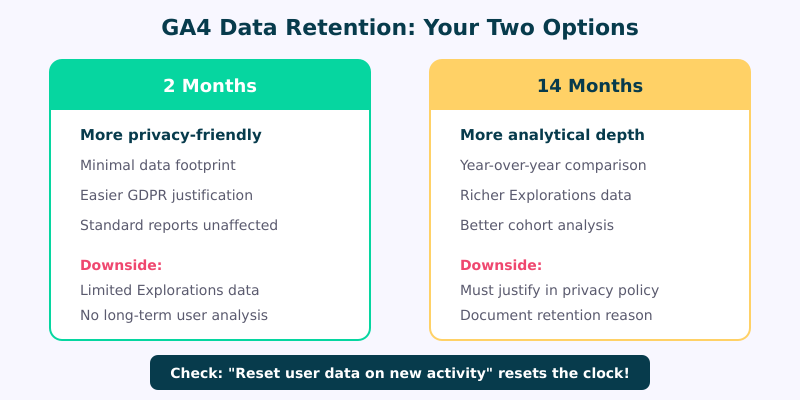
GA4 gives you exactly two options for user-level data retention on standard properties: 2 months or 14 months. That’s it. (GA4 360 properties get additional options, but most organizations are on standard.)
This is fundamentally different from Universal Analytics, which let you keep data essentially forever. And it creates a tension that many teams haven’t resolved: your marketing team wants as much historical data as possible, but your privacy obligations may require shorter retention.
How to audit this:
- Go to GA4 > Admin > Data Retention
- Check the Event data retention setting (2 months or 14 months)
- Check whether Reset user data on new activity is toggled on
- Compare this setting against what your privacy policy actually states about data retention periods
Key considerations:
- Aggregated reports (the standard reports in GA4) are not affected by data retention settings — they’re available indefinitely
- User-level and event-level data in Explorations is subject to retention limits
- The “Reset user data on new activity” toggle restarts the retention clock each time a user returns — effectively keeping active users’ data indefinitely
- Under GDPR’s data minimization principle, you should only retain data as long as you have a legitimate purpose for it
My recommendation: if your privacy policy says you retain analytics data for 12 months, set GA4 to 14 months (the closest option) and document why. If your policy is vague, this is your cue to tighten it up.
Step 4 — Inspect Cross-Domain Tracking
Cross-domain tracking in GA4 works by appending a _gl parameter to URLs when users navigate between your domains. This parameter contains a client ID that links sessions across sites, creating a unified user journey.
From a privacy perspective, this raises legitimate questions about user profiling — especially when tracking spans domains that users might consider separate services.
How to audit this:
- Go to GA4 > Admin > Data Streams > [Your Stream] > Configure Tag Settings > Configure Your Domains
- List every domain included in cross-domain tracking
- For each domain, ask: would a reasonable user expect their behavior here to be linked with the other domains?
- Check whether the
_glparameter is visible in URLs (it often is, which can confuse users and break caching)
Common issues I find:
- Cross-domain tracking configured for domains that share no actual user journey (someone set it up “just in case”)
- Third-party domains included that shouldn’t be — payment processors, support portals, or partner sites
- No mention of cross-domain tracking in the privacy policy
- The
_glparameter being indexed by search engines or cached by CDNs
Strip cross-domain tracking down to the minimum set of domains where you genuinely need unified session tracking. Every additional domain increases your privacy surface area.
Step 5 — Verify Consent Mode Implementation
Google’s Consent Mode v2 is now required for GA4 if you want to use audience data for advertising in the EEA. But beyond Google’s requirements, proper consent management is a legal obligation under GDPR, ePrivacy Directive, and an increasing number of state-level US privacy laws.
How to audit your consent implementation:
- Test as a new visitor: Open your site in an incognito window. Does a consent banner appear before any GA4 tags fire?
- Check tag firing order: In Google Tag Assistant, verify that GA4 only sends data after consent is granted. Watch for tags that fire on page load regardless of consent state
- Verify consent signals: In GA4 DebugView, check that the
consentparameter reflects the user’s actual choice —grantedordeniedfor bothanalytics_storageandad_storage - Test the “deny” path: Decline all cookies and verify that GA4 switches to cookieless pings (Consent Mode’s modeled data) rather than full tracking
- Check consent persistence: Grant consent, close the browser, return — does your site remember the choice without re-prompting?
Red flags to watch for:
- GA4 loading before the consent management platform initializes
- Pre-checked consent boxes (illegal under GDPR)
- No way to withdraw consent after granting it
- “Accept” button styled prominently while “Reject” is hidden or requires extra clicks
- Consent banner that doesn’t cover all tracking technologies on the page — use our Consent Logic Planner to map which technologies need which consent types in each region
If your consent implementation has gaps, no amount of GA4 configuration will make your setup compliant. This is the foundation that everything else rests on. For an automated check, paste your GTM initialization code into our GTM Consent Initialization Audit — it catches the ten most common Consent Mode v2 errors in seconds.
Step 6 — Document Your Processing Agreement
Under GDPR, you need a Data Processing Agreement (DPA) with any processor that handles personal data on your behalf. Google offers standard contractual terms for GA4, but you need to actually review and accept them — and many organizations haven’t.
How to audit this:
- Go to GA4 > Admin > Account Settings
- Check the Account Data Processing Amendment section — has it been reviewed and accepted?
- Review the Standard Contractual Clauses (SCCs) for international data transfers — are they current?
- Check whether you’ve completed a Transfer Impact Assessment (TIA) for data sent to Google’s US servers
- Verify that your internal privacy documentation references the GA4 DPA and explains the legal basis for processing
What should be documented:
- The legal basis for processing analytics data (typically legitimate interest or consent)
- What specific data GA4 collects and why each element is necessary
- Where data is stored (Google’s server locations) and the legal mechanism for international transfers
- Who has access to GA4 data within your organization
- Your data subject access request (DSAR) process — how do you handle requests from users who want their GA4 data deleted?
I know this step feels bureaucratic. But it’s also the one that regulators check first during an investigation. Having clean documentation can be the difference between a warning and a fine.
The Complete Privacy Audit Checklist
Here’s every item consolidated into a single checklist you can work through systematically. I recommend running through this quarterly — GA4 updates frequently, team members change settings, and new tracking gets added without privacy review.
| # | Audit Item | Where to Check | Pass Criteria |
|---|---|---|---|
| 1 | No PII in page URLs | Explorations + DebugView | Zero email addresses, names, or IDs in page paths |
| 2 | No PII in event parameters | DebugView + Tag Assistant | All custom events scrubbed of personal data |
| 3 | Data Redaction enabled | Data Stream > Tag Settings | Email redaction active for URL parameters |
| 4 | Google Signals reviewed | Admin > Data Collection | Disabled unless documented business need exists |
| 5 | Data sharing settings reviewed | Account Data Sharing | Only necessary sharing categories enabled |
| 6 | Data retention appropriate | Admin > Data Retention | Matches privacy policy; documented justification |
| 7 | Cross-domain tracking minimal | Data Stream > Configure Domains | Only essential domains; documented in privacy policy |
| 8 | Consent Mode working | Incognito test + DebugView | Tags fire only after consent; deny path works |
| 9 | DPA accepted and current | Account Settings | Processing amendment reviewed; SCCs in place |
| 10 | Privacy policy accurate | Your website | Reflects actual GA4 data collection and purposes |
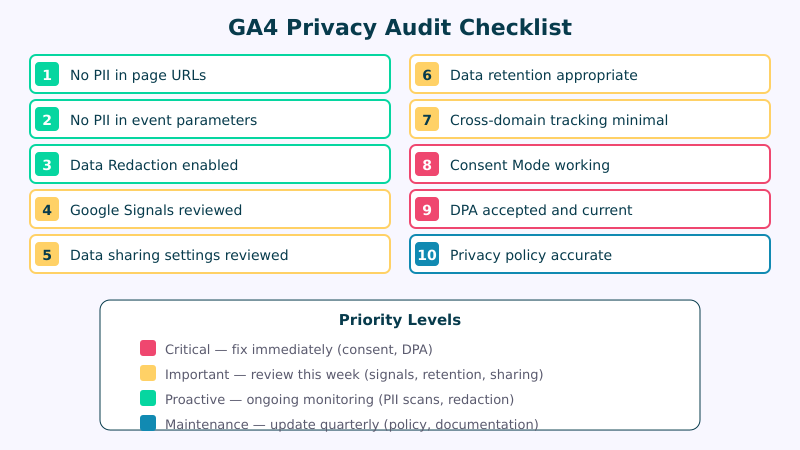
Save this checklist somewhere your team can access it. Better yet, assign an owner for each item and set a calendar reminder for quarterly review.
FAQ
Is GA4 GDPR compliant by default?
No. While GA4 includes some privacy improvements over Universal Analytics — IP anonymization is on by default, and data retention is shorter — it does not come pre-configured for GDPR compliance. You still need proper consent management, a Data Processing Agreement, appropriate data sharing settings, and potentially a Transfer Impact Assessment for US data transfers. Multiple EU Data Protection Authorities have issued rulings against Google Analytics implementations, making it clear that simply installing GA4 is not enough.
How often should I audit my GA4 setup for privacy?
I recommend a comprehensive audit quarterly, with lighter checks monthly. The quarterly audit should cover all 10 checklist items above. Monthly checks should focus on PII in URLs (new pages and features often introduce leaks), consent mode functionality (CMP updates can break things), and any new events or tags added by your team. Also audit whenever you launch a new feature, redesign pages with forms, or change your tag management setup.
Can I use GA4 without cookies?
GA4 with Consent Mode can operate in a “cookieless” mode when users decline consent. In this mode, it sends cookieless pings to Google and uses machine learning to model the data gaps. However, this modeled data is less accurate, and you’re still sending some data to Google’s servers — which some DPAs have argued constitutes personal data processing. If you want truly cookieless analytics, purpose-built tools like Plausible, Fathom, or Simple Analytics are more straightforward options — and they all support UTM-tagged campaign measurement out of the box. See my complete comparison of Google Analytics alternatives.
What happens if Google finds PII in my GA4 data?
Google’s terms of service prohibit sending personally identifiable information to GA4. If their automated systems detect PII — most commonly email addresses in URLs or event parameters — Google may delete all analytics data from the affected time period. This isn’t a row-level deletion; it’s a broad wipe that can erase weeks or months of data. You typically won’t get advance warning, and there’s no recovery option. This is why proactive PII auditing is so important: the business impact of losing your analytics data can be severe, entirely separate from any regulatory consequences.
What to Do Next
You’ve now got a clear framework for auditing your GA4 setup. The question is what to do with what you find.
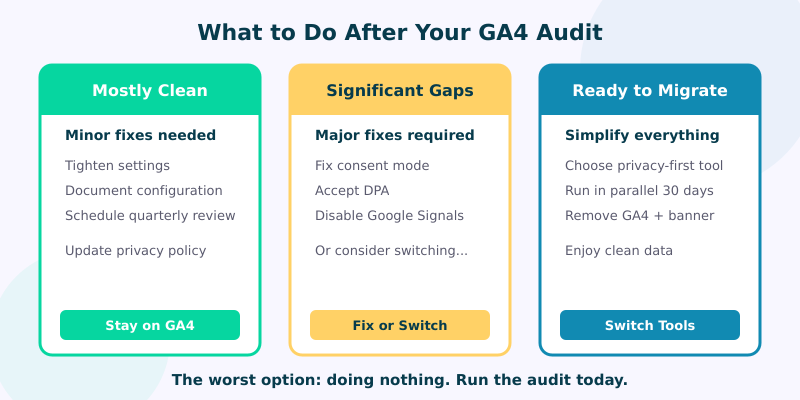
If your audit is mostly clean — a few minor items to fix — then tighten those settings, document your configuration, and schedule your next quarterly review. You’re in better shape than most.
If your audit reveals significant gaps — missing consent management, PII flowing freely, no DPA in place — you have a decision to make. You can invest the time and resources to bring your GA4 setup into compliance, or you can evaluate whether a privacy-first analytics platform would give you the data you need with less overhead and less risk. Use our Consent Impact Dashboard to quantify how much traffic data your consent setup is costing you — the numbers often make the decision easier.
Either path is valid. What’s not valid is doing nothing. Privacy regulations are tightening globally, enforcement is accelerating, and “we didn’t know” stopped being an acceptable answer years ago.
Run the audit. Document the results. Make an informed decision. That’s what responsible analytics looks like.